Showing posts with label technical. Show all posts

Sunday, November 14, 2010

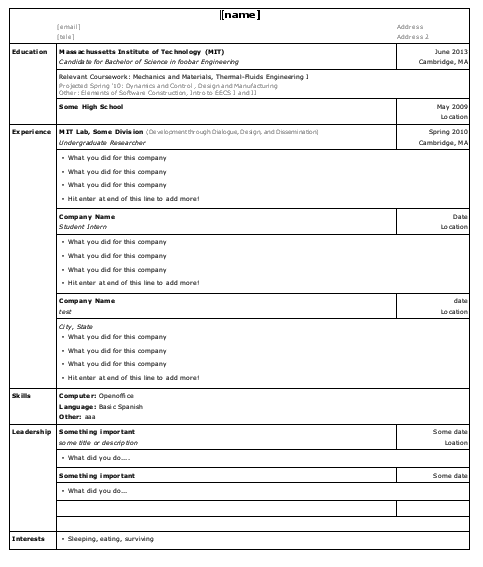
[free] Open Office Resume Template for Undergraduates (MIT) - for UPOP

(free, I don't care how you use it)

[update 4/3/11: I've since changed the design based on feedback, primarily addressing the date/location formatting inconsistency, the small font, the multiple colors (shades of gray) and font sizes, and really killed more information off of my resume to make it less crowded.]

http://web.mit.edu/nouyang/Public/resume/

There's an openoffice (.odt) resume template there. Along with the
  • resultant PDF (or  
  • here if you prefer google docs), and a  
  • screenshot of what it looks like in OpenOffice if you want a preview (the table lines are invisible when you export it).
    [EDIT: 15 Nov 2010] I tried exporting to .doc; it's fairly messed up, but possibly fixable. I'm not interested in fixing it, but good luck.  
  • Here is the template in .doc

It looks nicer when it's filled in :)

It's what my current resume is based off of; sort of derived from one of the UPOP sample resumes (if you're in UPOP, sign in and see "Resources")
I remixed it from one of the openoffice templates, the one that has blue borders.

Also useful:
http://europass.cedefop.europa.eu/europass/home/hornav/Downloads/EuropassCV/CVTemplate/navigate.action

As a preview, this is what the English one looks like:


====

Anyway, documentation for my template:

The relevant styles (edit> styles and formatting, find the style you want, right-click and hit "modify") are

  • resume (for the leftmost column titles)
  • Heading 1 (for the company/lab names)
  • description/title (for the job descriptions)
  • bullet list (for all the bulleted text)
  • Default (for all the other text, dates, etc.)

If you want to change the order of your rows or something, you have to Create New Row, Copy Old Row and Paste into New Row, finally Delete Old Row.

However,  In openoffice, Copy & Paste either doesn't preserve the formatting (e.g. the date column) or doesn't copy anything at all is there's a "dimension mismatch" in a sense

Thus, for moving rows or creating new sections, note that there's two types of sections. (A)The "skills" section with just a field for bullet points, and (B) the "experience" section with a company name+date+location and a field for bullet points. (see screenshot if you're confused)

  • If you're moving same-type sections around:
    • Select (left-click, drag) appropriate (B) rows / (A) row, and Right-click> Row > Insert... > Before / After.
  • If you want a different section:
    • To move a section (A) from before (B) to after (B) (or vice verse)
      • Follow above to create new (B) section
      • Then select the row for (company name+date+location) and Right-click > Row > Delete
      • Copy over (A) contents
      • Delete old (A) row
    • To move (B) to before or after (A)
      • Think of it in terms of moving (A) to before or after (B) (yes, be an engineer and solve problems), because you can't "add rows" from (A) and then copy (B) over because (B) is "richer" than (A) so it won't "fit"

Yay, you keep it so that all the columns are aligned together.

For bullets, Format > Bullets and Numbering,
"width of numbering" is what really effects the spacing between the bullets and the text
"minimum space numbering <-> text" sets a minimum, so it may or may not effect your spacing
"indent" sets the spacing between the table cell boundary and your bullet

Also, see Format > Page if you want A4 instead of letter, or to adjust the page margins.

See Right Click > Table > Borders to adjust the "Spacing to Contents" fields

Also note the checkbox "Table Boundaries" when you right-click, that lets you toggle viewing of what it looks like when export to PDF, aka without the table boundary lines drawn in if you set Table > Borders to the "Line Arrangement" with no lines like I did.

View > Nonprinting Characters is useful for troubleshooting things like the mysterious, hard-to-get-rid-of blank line that appears after the table. (something about a table is attached to a paragraph so there always has to be a paragraph)

If you get a blank line which creates a new page after the table, go to the end of last cell in the table and hit "shift-ctrl-del" ("del" by itself on the blank line does nothing, and backspace goes into the table instead of removing the line). The line will come back if you save and re-open the document, though *shrug*

Sunday, October 10, 2010

triple-booting xp, ubuntu, windows 7

I don't actually use Windows XP ever, I only use Ubuntu. But I'm not sure what to do with all the files on XP. My hard drive is only 60 gb. Ideally, I could just wipe out the xp partition and install windows 7.

However, I have to install Windows to use Solidworks.

:(

I'll be documenting my progress as I go along.

Saturday, September 11, 2010

random mit websites

http://noontime.mit.edu/
interesting concept, not sure if still actively used, entirely Sloan graduate students and six undergrads.
http://classmates.mit.edu/
fell out of use after last semester, doesn't seem to be maintained (all the classes people are signed up for are from last semester)

~random~
http://mitfml.com/
...yes.
http://isawyou.mit.edu/
there are some really weird posting there. bad taste (chorallaries concert) picked out some highlights.
http://qdb.mit.edu/
quotes from MIT classes (sub to personal classes [of friends] on zephyr for more quotes)
https://wakeup.mit.edu/
and whereis, and ... see previous post (tips and tricks for frosh)

~talks~
http://mitworld.mit.edu/
Nice talks (video)
(Have you seen the machining ones? Nice way to get a base even if you don't remember everything. http://techtv.mit.edu/tags/337-shop/videos)
http://legatum.mit.edu/lectures
More nice talks (video)
http://cluedumps.mit.edu/wiki/SIPB_Cluedump_Series
some good pdfs on there from past talks
http://ocw.mit.edu/
Of course. (Also useful when studying for exams, often has old finals esp. for GIRs). Have you seen Walter Lewin's lectures? They're amazing. Physicists are amazing, whatever my dad may say :)
~Oh dear. I could go on forever. So many videos to watch while doing laundry.
http://www.ted.com/
http://www.justiceharvard.org/ (I was so engrossed in these during charcoal sorting UROP that I lost my ID and keys, a.k.a. $45 official value, in a random tub...)

http://global.mit.edu
international opportunities
~ID~
http://web.mit.edu/mitpsc/showcase/opportunities/index.html
international development opportunities (link's a bit buried
http://web.mit.edu/mitpsc/volunteering/placement/index.html
volunteer opportunities
http://globalchallenge.mit.edu/
Will be a nice place for ideas shortly. (in beta)
http://mitpsc.mit.edu/globalchallenge/
Check out the PSC blog in the meantime

Some tips and tricks for frosh

(for freshmen at MIT)
~~Terrible formatting, because I don't care enough. If I didn't make it a link, google it.~~

There's new frosh on hall, so it's time to answer all the goodies such as how to subscribe to the Reuse mailing list. Around this time of year, popular mailing lists get multiple "subscribe" emails (which don't do anything) sent out to the entire list.

I'm reusing a lot of material from my previous posts, but this post will be terse and aimed at people already at MIT, not prefrosh with too much time on their hands :)

First off, there's a comprehensive FAQ at kb.mit.edu. It's lovely, use it. Try searching for "mailing list" and this wonderful article pops up: How can I add or remove myself from e-mail lists? (Hermes).  Check out the "Browse by Category" view too.
For more FAQs, see http://www.mit.edu/~asksipb/.
http://ist.mit.edu/getting_started/athena is worthy of skimming too (especially the Email section which tells you how to forward or split your mail to Gmail).
For more detailed info, some of which is obsolete, see http://sipb.mit.edu/doc/ 
And if you want in-person help, the student computing group SIPB has an almost-always open office on the 5th floor of the student center. They're really friendly, and they have sharkbananas! :D http://www.sharkbanana.com/

Speaking of gmail, you can use plus-forwarding and the deliveredto: operator to easily catch all your MIT email in a filter. chpobox to $GMAILUSER+mit@gmail.com and when you create your Gmail filter, in the "Has the words:" box enter deliveredto:$GMAILUSER+mit@gmail.com

~Reuse and free-food~
Frosh asks: How do I subscribe to reuse, free-food, other mailing lists?

To subscribe to the free-food mailing list, type in
blanche -a kusername free-food

at an Athena prompt. (where kusername is your Athena username)

To subscribe to the Reuse mailing list(s), go to http://mailman.mit.edu/mailman/listinfo/reuse and sign up. See http://mailman.mit.edu/mailman/listinfo/reuse for more details / more ways to sign up (scroll to the very bottom).
Note that reuse is actually a Mailman list and not a Moira list so blanche doesn't work.

You'll first get an email asking you to confirm the subscription, and then you'll get a welcome email. (I thought I'd confirmed, but I never got a "Welcome" email... so I hadn't).

Consider also
http://boston.craigslist.org/
http://groups.freecycle.org/freecycleCambridgeMA/description (requires Yahoo account)

Oh, and general internets, you can add yourself to the MITERS email list! See http://miters.mit.edu/keyholding/list.php. Feel free to call to see if anyone's in and the space is open. It's exciting when the phone rings, no one ever calls :)

[Edit]
Oh, and as an MIT student there's a lot of free software too, e.g. Windows 7. http://ist.mit.edu/services/software
Also discounts at places such as Digikey. Ask around.

~~Debathena~~
Debathena, Lucid currently, runs on the computer clusters at MIT. It's based off of Ubuntu, which is a popular Linux distribution.

If you're new to linux, just remember the man command. E.g.
man blanche

Apropos is also useful, combined with "piping" it to further refine the search results, e.g.
apropos print | grep lp

If you're confused, try
man apropos
man grep

You can install Debathena on your computer,

~Tips and Tricks~
If you forget the combo, type in
tellme combo

Shortcut to class websites is co (aka co.mit.edu or courses.mit.edu), e.g.
co/7.012
(At MIT, unless you're using google's Chrome browser, there's no need to type out "mit.edu")

To look someone up, go to web.mit.edu and select People Search. Or at a terminal, try

finger $athenausername
.

Lost? Wondering where in the world is building 31?
whereis.mit.edu
("cluster" is a useful search)

~Getting Stuff~
Groceries:
Shaw's: If you live at EC, instead of hitting mass ave and turning right, cut through Stata and head to star's via the MIT Museum. Ask an upperclassman to show you the route. Takes 11 minutes one-way.
Seven Eleven is 5 minutes away from EC and has the cheapest milk.
Verde's @ student center is open 24/7 (during the school year). Most things are noticeably marked up.
Haymarket has the cheapest fruit and veggies (and sketchy meat), open on Friday and Saturday only, get there early (9 or 10am works for Saturdays). See http://www.yelp.com/biz/haymarket-boston for more tips.
Chinatown is 17 minutes away by T.
There's food trucks on the T-stop side of MIT medical.

Free things:
Mailing lists: free-food, vultures@csail, reuse and reuse-ask
Also, stuff on 35 loading dock is up for grabs, cool stuff shows up sometimes. There are freegans aka [food] dumpster divers at MIT, although I don't know if anyone relies on them for food. ask around if you're interested. Around the start and end of semester many nice things show up in dumpsters as well.
Dan Fourie on hall (putz aka 2w) has a google calendar, ask me for the link or find it on his website.
There's also events.mit.edu, although many events are not listed on there (see flyers around campus instead).

Floorplans: https://floorplans.mit.edu/ (for those hard-to-find reuse posts)

Getting books: bookspicker.mit.edu (compares prices from APO book exchanges and a bunch of online sites, search by class #),
APO Bookex http://apo.mit.edu/bookex/ (Best way to get cheap textbooks. Get there early on the first day, before opening time).
MIT Press has a loading dock sale every semester, but there's no way of knowing what books will be there. Definitely go the first day when they're not open to dealers. Prepare to spend some time browsing.

Best way to find books is MIT Worldcat (linked from libraries)

~Athena Filesystem~
Three important folders:
/Public         Files here are by default accessible by everyone, including people on the internet
/www      Similar to public. If you use scripts (see below) things will appear here.
/oldfiles   Contains a day-old backup of all your files. Has saved people in the past.
If you're on Athena, you can fire up Nautilus (the file manager) and


cd /mit/$athena-username
See http://ist.mit.edu/services/athena/afs#acls for more info. Call it recommended reading.

If you're on ubuntu, try Places > Connect to Server..., select "Service Type: SSH", fill in appropriately. Alternatively, open up Nautilus, hit Ctrl-L and type in sftp://$username@linux.mit.edu/mit/$username
On Mac/Linux, you can open a terminal and
ssh $username@linux

On Windows, you can download PuTTY. http://www.chiark.greenend.org.uk/~sgtatham/putty/

Want to set up your own wiki or wordpress super-easily? See http://scripts.mit.edu/start/

Some odd building connections: 3rd floor of 24 (ESG building) connects to 3rd floor of 34, the 30 buildings are connected on the 3rd floor, there's a Windows cluster with dual monitors in 37, and there's a Mac cluster with media software on the 1st floor of 26 (sometimes has classes in it) (has a scanner).

[Edit: Saturday, September 11, 12:22 PM]
How could I forget https://wakeup.mit.edu? Amazing lifesaver. Calls your room phone (need certificates) and plays song (e.g. Puff the Magic Dragon) over voicemail at set time.

Oh, and if you're at all interested in artsy things, we have the Student Art Association which offers heavily subsidized art classes and has a great workspace with tools on the 4th floor of the student center. See http://saa.mit.edu/studios for classes.

[Edit: Saturday, October 2, 1:17 AM]
Other good loading docks in addition to 35:(loading docks in general tend to be nice)
Stata basement, back of the parking lot. That's actually a place for recycling electronics. So there are monitors, random old electronics, random old lab parts, power supplies, printers, rolly chairs at various stages of decay, and such down there regularly. sometimes couches.
N52, MIT museum. I've seen couches, bike parts, random rubber wheels

Monday, August 31, 2009

Mailing Lists

More quick notes:
To subscribe to the free-food mailing list, type in
blanche -a kusername free-food
at an Athena prompt.

To subscribe to the Reuse mailing list(s), go to http://mailman.mit.edu/mailman/listinfo/reuse and sign up. See http://mailman.mit.edu/mailman/listinfo/reuse for more details / more ways to sign up (scroll to the very bottom).
Note that reuse is actually a Mailman list and not a Moira list so blanche doesn't work.

You'll first get an email asking you to confirm the subscription, and then you'll get a welcome email. (I thought I'd confirmed, but I never got a "Welcome" email... so I hadn't).

It sucks that owa.mit.edu, the MIT Office Outlook Web Access thing set up by default, doesn't have filters. I will need to figure out how to forward my email to gmail soon...

Monday, August 17, 2009

SZS, the [SMS (Text Message) to Zephyr] Relay Service

[Update 11/6/09] Not kusername@mit.edu, rather szs.mit.edu. Really there are a bunch of errors in this article, try sipb.mit.edu/doc/szs/ instead.

[Update 08/20/09] Updated the filter for text messages so that ones received would also be colored blue. Old: filter szs -c blue ( class ^szs$ ) New: filter szs -c blue ( class ^szs$ ) or ( sender daemon.webzephyr@ATHENA.MIT.EDU )

Uhh... I need sleep... okay, let's finish this up.

Abstract: Learn how to send and receive Zephyr to Phone messages, learn how to send phone to Zephyr messages, and learn how to set up a Barnowl filter to stick both sent and received messages in personals (and colorcode them).

So you want to use Zephyr to send and receive text messages? I did. At first, it's because I didn't have text messages on my cellphone subscription plan. Now, it's because texting on a cellphone feels unbearably slow compared to my normal typing speed, and becaues my Inbox fills up really quickly and I can't sort or do anything with messages on my phone. Google Voice also has this send/receive text messages capability, but I haven't set up my Google Voice account yet (I did get an invite already).

First off, unless you're just testing this out, you'll want a persistent Barnowl session. Go figure out owl-screen and set it up. I was planning to write an entry about this, but no worries ^^ There's plenty of documentation out there. See UsingZephyr | SIPB, and to go a bit more in-depth see UsingScreen | SIPB. There's a broken link in there that should point to owl-screen.txt | kchen. Do use owl-screen instead of running screen and then barnowl, though. owl-screen includes things such as a cont-renew-notify process, which sends you a timely zephyrgram telling you to renew your tickets (which authenticate that you are who you are).

Also, occasionally you may want to restart owl-screen or linerva may need to be restarted, so set logging on via :set logging on inside Barnowl.

To send text messages, see szs.mit.edu/szs.html; I'll explain in more detail in this post.

Note that this page is linked from webzephyr.mit.edu, which provides another gateway surface, between the web and zephyr. However, I've never actually used this purpose (for instance, if you're on a Windows machine which you aren't allowed to install software on, or don't want to, but want dialup access to Athena). I use a Java SSH applet, originally Mindterm SSH: X.dialup.mit.edu. Sometimes the Java applet would never pop up in its separate window, however, and I'll use Netscape Foundation - Jave SSH Client instead (although I'm not 100% sure it's fine to do this? I haven't really seen a Terms of Use).

Sending Messages from Zephyr

In Barnowl, the format is
:zwrite daemon.webzephyr -c szs -i 1234567890@servicemail.foo
You can look up the email address for a give service provider, e.g. AT&T, here: Send Email to Phone (scroll down). Additionally, if you're not sure what service your friend is using, use Google to look up the number (for instance, try Free Cell Phone Carrier Lookup | Whitepages.com(just enter in the "Mobile #" field[s], the "Name" and "Select Your Carrier" are unnecessary).

Messages you receive will filter to your Personal messages, so you can hit [Alt-p] to view any text messages you might have received. [Shift-v] (aka "V") will get you back to viewing all messages that you've gotten.

Note that [Ctrl-r] does not work on text messages that you've received (it will expand to :zwrite daemon.webzephyr, I believe). Instead, hit [Ctrl-R] and add -c szs -i 1234567890@servicemail.net, then hit [Enter]. Rather annoying, but I deal and you can too :)

Filters

In addition, you'll want to set your filters so that the messages you send, not just the ones you receive, will be visible when you hit [Alt-p].

Hit [Ctrl-a] followed by [c] to open up a new Screen window. Use nano if you're familiar with vi, etc. (To get back to Barnowl, hit [Ctrl-a][0]. To see a list of Screen windows, hit [Ctrl-a][w]).
vi ~/.owl/startup
filter personal -c green ( class ^szs$ ) or ( isprivate ^true$ and ( not type ^zephyr$ or ( class ^message$ ) ) ) or ( class kusername ) or ( type admin )
filter szs -c blue ( class ^szs$ ) or ( sender daemon.webzephyr@ATHENA.MIT.EDU )
Replace the colors with what you want. Use :show colors to see what colors are available. The second filter is to color your text messages differently from your other "personal" messages; it's optional.

Sending Messages from a Phone

Despite email address format as opposed to a phone number, send it as a regular text message, NOT a picture or multimedia message. My phone automatically sets it to a picture message when I type in an email address instead of a number, and my messages don't seem to get through (they may have gotten through occasionally, I don't remember and I'm too lazy to regexp through my logs).

Simply send a message to
kusername@szs.mit.edu
Yea, that's it :) Heh.

Note: Messages over 140 chars will get cut off between the phone and Zephyr. The cell phone user will get invalidpducontent, although the first part of his/her message will get through to Zephyr. On the other hand, messages _from_ Zephyr to cellphones can be as long as you like.

Note: Some characters that you can type into Zephyr on your computer, for instance if you try typing in Chinese, you may not be able to view on your phone (e.g. you'll just see boxes) [for uhm fairly obvious reasons]

Note: You might note that on szs.mit.edu/szs.html there's mention of texting classes and instances. This does indeed work (thanks jontec for testing this out, and AIM user I'm not sure the kusername of >.<), however note that messages appear like this (your phone number IS visible to everyone!):
   2013 / szs / daemon.webzephyr  02:56  (http://szs.mit.edu)
       ping
   
   
       (Sent by 1234567890@servicemail.net via the webzephyr SMS/Email to Zephyr gateway.
       Zephyr replies to daemon.webzephyr -c szs -i 1234567890@servicemail.net )


G'nite, off to bed. Have to get up for work at 7, and can't take afternoon naps @ work, bleah >.< *yawn*

Sunday, August 16, 2009

Random Zsigs in Barnowl

Screw this, I'm breaking this "Intro to MIT Athena" stuff up into multiple entries. :) I mean, what was that maxim, "Real Artists Ship"? And considering I have 1 day left (work == no bloggy on Tuesday before 5 pm), I think I need to get going. So instead of going in order, I'm going to go with the stuff I can get done the fastest / the info that I feel can least be found elsewhere online. That'd be a) setting up a random zsig and b) using the szs service.

Abstract: We use the Zephyr (MIT messaging sytem) client Barnowl to set our zsig as a randomly selected line from a file consisting of zsigs separated by newlines.

Random Zsig: Intro

Highly recommend background reading: /help.c - barnowl - Trac and the "intro" file at /docs - barnowl - Trac.
OR view it inside barnowl. :help and :show quickstart pulls each up respectively.

A "zsig" appears after your kusername in Zephyr (see my previous post if you don't know what Zephyr is). By default, if your name is Jane Lillian Doe, your zsig is (Jane L Doe). For instance, if you're on Zephyr, you might see
   2013 / personal / jdoe  22:16  (Jane L Doe)
       ...hey I'm talking here.
A good percentage of people keep it that way, or remove the middle initial. Another set of people leave it at some interesting quote. To do so, as mentioned in the previous entry,
:set zsig 'this is a very interesting quote'
However, I had too much time on my hands earlier on in the summer, and so I set up a random zsig generator. It's very simple, actually, 'cos Barnowl is awesome :) Unfortunately, the documentation that I could find online all seemed outdated.

Well, the basic theory is that you can write some code that prints stuff out (stdout), and setup Barnowl to run that code, take the stdout, and pipe it to your zsig. (The wikipedia article is kind of technical on "piping", if it doesn't make sense just follow along).

Note: Unless you've gone and figured out Screen, don't start up Barnowl until you need to (I'll mention when).

Here we go!

  1. Remote connect to Athena.
    ssh kusername@linux.mit.edu
  2. Create a file of zsigs, each separated by a newline. Use "nano" instead of "vi" if you're not familiar with vi, and modify the second set of instructions accordingly. For instance
    vi zsigs
    i #Enter into Insert mode
    a zsig
    random zsig2
    random234
    :wq  #Write the file and quit
  3. Create a file to store your code
    vi .zrandom
  4. Write a program, for instance:
    #!/usr/athena/bin/python
    import random
    zfile = open('.zsigs')
    linelist = zfile.read().splitlines()
    zfile.close()
    print random.choice(linelist)
    If you want to use another language (e.g. perl or C), or check out what version is running on Athena, check out What Runs Where on Athena: Languages | IS&T for how to indicate on the first line the language you want.
The Above Program, Explained
Since I don't program much if at all, I relied on Google to write this program. This progam imports the module random, which has pre-written functions such as the random.choice() used later. It opens a file ("~/zsigs") where I've written a list of zsigs I want to choose from randomly. These zsigs are separated by newlines, and so I read each line into a list. For instance, if I add a
print linelist
in there, I get this:
['zsig one', '2--this is a random zsig', 'foo', 'etc.']
Once I have it in list form, I can use random.choice() to randomly choose one of the items in the list. Meanwhile, I exit the "zsigs" file once I am done reading from it.

Note: You can test your program, for instance in my case:
nouyang@dr-wily:~$ python .zrandom
www.google.com/search?q=*RECURSION*
The second line should be one of the zsigs from your list.

Setting Up Barnowl

Now, there's two ways to accomplish the same thing. We have to set it so that, when Barnowl starts up, it sets your zsig as an empty string. Then, we tell it to run the Barnowl command "zsigproc" and tell it where our zsig program is located. (If you have anything in "zsig" it will take precedence over your "zsigproc" variable). [1]

Note: To check what you've set variables as, use
:print variablename
Method 1: Manually
This really shouldn't be first, but when I set up my zsig generator I did it this way, and I learned a bit about Barnowl this way. Skip below for the easier method if you just want to get something working.
  1. Edit the file that Barnowl reads when it starts up. Again, use nano instead of vi if you're not familiar with vi, and modify the second set of instructions accordingly.
    vi .owl/startup
    i  #Enter "Insert" mode
    set zsig ''
    set zsigproc '~/.zrandom'  # The file where our zsig program is located
    [Esc]  #Escape into command mode
    :wq  #Write the file and quit
  2. Then open up Barnowl
    add barnowl; barnowl
  3. Voila! That's it.
  4. You can check that Barnowl is setup correctly. This should output zsigproc = '~/.zrandom'
    :print zsigproc
    Also, zsig should be set to an empty string. This should output zsig = ''
    :print zsig
  5. If you want to force Barnowl to reload the startup file,
    :source "~/.owl/startup"
    Also, you can zwrite yourself to check that everything's working.
Method 2: Easier
  1. Open up Barnowl
    add barnowl; barnowl
  2. Use the ":startup" command in Barnowl to write to the "~/.owl/startup" file (or wherever you decided to put the file) [2]
    :startup set zsig ''
    :startup set zsigproc '~/.zrandom'
  3. Force Barnowl to reload the startup file
    :source "~/.owl/startup"
  4. Optional: Check that the correct startup file is loaded
    :show startup
That's all there is to it!

Footnotes

[1] From /help.c - barnowl - Trac,
zsig - zephyr signature (default: '')
zsigproc - name of a program to run that will generate zsigs (default: '<null>')
[2] If you run :help startup inside Barnowl, you get
startup - run a command and set it to be run at every Owl startup  

Saturday, August 15, 2009

MIT 2013 AIM Blast, Zephyr, and Barnowl

[Update: 08.16.09 ~1 hour later] Well, all the quoting issues are fixed (yay speed bug killing courtesy of austein) so just ignore anything you see about quotes or bugs (excluding this statement itself--phew escaping that self-reference loop).

[Update: 08.16.09] Welll, in the name of progress, my blog post has already become outdated ^^; I'm too lazy to fix it all so I'll just list the changes up here:
  2013 / MSGS / austein  15:50  (Matthew Goldstein)
       The MSGS gateway has been upgraded:
       a) Zephyr users are again specified at the start of the message instead
       of the alias, making Blast's logs more readable
       b) Instances are now specified by #hashtags at the start of the message
       instead of commas
In short, you'll need to use / you'll see
[mit2013]: (zephyrgate) (kusername) #instancename yay this is a message
versus the old
[mit2013]: ("kusername" zephyrgate) ,instancename, yay this is a message
[14] Oh, also, double quotes don't work as of right now. So stick to Joyce-esque dashes :)

==========

Disclaimer: This post is wordier, more passive, and less organized than I would like it to be, because I have too low of a ratio of motivation:time. [0]

Abstract: This post goes through getting onto the [MIT 2013] AIM Blast, getting onto MIT's messaging system, Zephyr, via the Barnowl client, and some basic commands for both.

So, if you're here, you're probably wondering, "Zephyr? Barnowl? Athena? Kerberos? Screen? WTF?" like I was. Let's walk through this in chronological order of when you would encounter them. (Or, see Other Useful Articles for other people's introductions).

Table of Contents
  1. Summary of Steps
  2. Zephyrgate
  3. Conclusion: Why Zephyr?
  4. Other Useful Articles
  5. Footnotes

Summary of Steps


AIM Steps
  • Join AIM Blast via the (closed) "MIT 2013" facebook group, or get someone already on it to !invite aimusername you
  • Optional: Set a nickname for yourself via !alias nickname (often set as "kusername", your Kerberos username, or "real name")
  • Optional: Maintain instances ("topics") by preceding messages with ,instancename, (e.g. ,zephyr, how do I get on zephyr?)

Zephyr Steps
  • Remote connect to Athena and startup Barnowl, a Zephyr client
    ssh kusername@linux.mit.edu
    add barnowl; barnowl
  • Subscribe to the class "2013," which is magically linked to AIM via a piece of software
    :sub -c 2013
  • Write to the class with "test" as the instance (aka topic)
    :zwrite -c 2013 -i test
  • Send the message with the shortcut [Ctrl-d]
  • To reply to messages, scroll up or down with the arrow keys and hit "r" (or "R" if you want to change the instance)
  • To go to the last message, hit ">"

Zephyrgate

Presumably you will encounter the AIM Blast first, the invite is listed on the closed MIT 2013 Facebook group. The "blast" is a feature of AIM new to our class, and lets you send group messages. Unlike a normal AIM chatroom, it is permanently open--it operates like mailing list, always waiting in the background until someone speaks up, and then everyone in the Blast gets the message. [1]

Now, a current MIT student has invoked some magic to render the MIT 2013 Blast special: [MIT 2013] links to Zephyr via a "zephyrgate." Zephyr? Zephyr is the MIT chat system, used primarily by MIT and Carnegie Mellon University (two different "realms" in zephyrspeak). Zephyr's specialty lies in its system of classes and instances. [2] Class:instance :: blast:topic, in old SAT verbal analogy form. Classes can be created by anyone for anything from a literal class, e.g. 8.012 Mechanical Physics for Masochists, to a student group, to personal classes (reserved by convention) for each zephyr user (e.g. to be used as a twitter feed, diary, etc.). Thus, going from spontaneity to order: AIM > Zephyr > Forum > Email. The power of Zephyr lies in the fact that one can easily "filter" mesages by class or instance, or even by "dynamic filters" created on-the-fly, which we will go into in another post.

Note also that, on Zephyr, no list, such as might be found in chatrooms or IRC, exists of the number of people in a class. Although this makes it difficult in [MIT 2013] to tell if anyone will hear you, what can I say... zephyr == lurker heaven :P [3]
The AIM Side
So, on the AIM Blast, you'll get messages such as
[mit2013]: (aimusername) hello world #Note: appears like this even if you use gmail to login to AIM
[mit2013]: ("smart-enough-to-set-an-alias" aimusername) hey wassup
[mit2013]: ("another-alias" googleusername@gmail.com) lorem ipsum dotum 
[mit2013]: ("kusername" zephyrgate) technogarblespeak
That last person is likely a current student... or a prefrosh invading Zephyr, heh. [4] [5] [6]

You may also see something like this:
[mit2013]: ("kusername" zephyrgate) ,zephyr, hey how do i change the name in the parentheses
The ",instance-name," is actually intrepreted on the zephyr side as an instance (messages not assigned an instance default to "personal"). Or, from our point-of-view, zephyrgate translates zephyr instances into ",instance-name," on the AIM side.
Some AIM Commands
!off -- mute [MIT 2013]
!on -- yea
!alias -- set your alias, e.g. !alias "Your R Name" or "kusername"
!history -- view the last few IMs on the blast
!invite -- invite a friend to the blast
Note that people on the Zephyr side can see your alias.

See AIM Blast Power User Tips for more.
The Zephyr Side: Getting Started
One more thing about zephyr... its most popular client (such as one might use Pidgin or Trillian or Gmail to connect to AIM), called Barnowl[7], is text-only... heh. But no worries! Text-only does NOT equal impossibly non-user friendly, unlike what everyone in the world would have you believe. Ready? Here we go.

(Note: It's helpful to have the MIT 2013 Blast open simultaneously, 95% of the time people _are_ listening and more than willing to help prefrosh invade Zephyr).

So, let's use our magic SSH powers (see my previous post) to connect to linerva (or athena-dialup or linux).

  1. SSH to the SIPB Linux Dialup
    ssh kusername@linux.mit.edu
  2. Enter
    add barnowl; barnowl
    Immediately, your screen should display
       OWL ADMIN
           -----------------------------------------------------------------------
           Welcome to barnowl version 1.2.1.  Press 'h' for on-line help.
           To see a quick introduction, type ':show quickstart'.                  
                                                                                  
           BarnOwl is free software. Type ':show license' for more                
           information.                                                     ^ ^   
                                                                            OvO   
           Please report any bugs or suggestions to bug-barnowl@mit.edu    (   )  
           -----------------------------------------------------------------m-m---
    Isn't the owl cute? :) [8]
  3. At this point, to gain loser points like me, you can talk to yourself. -^-^- Since this first part is easy to mess up, I've included the points where you should press [Enter]:
    :zwrite kusername[Enter]
    hello self[Enter]
    .[Enter]
    [9]
    • You should immediately see
         Zephyr sent to kusername  01:29  (Your R Name)
              hello self
      were kusername is your kerberos username, and that R is your middle initial if you have one. The stuff in parentheses is called your "zsig," which we will learn about shortly.
    • Then you should see, in bold
         Zephyr from kusername  01:29  (Your R Name)
              hello self
      Yay :)
    • You can change the stuff in parentheses, your "zsig", via
      :set zsig "a new zsig"
    • Note that your zsig doesn't show up on the AIM side. On the other hand, AIM users have their zsig set as (alias Via MSGS Gateway).
  4. Okay, amusing detour aside, now that you're done talking to youself, "subscribe to class 2013":
    :sub -c 2013[Enter]
    [10]
  5. To verify that you're subscribed (if you hit [MIT 2013] at a slow point in time when no one's talking), if you enter
    :show subscriptions
    you should see
    <2013,*,*>
    in the list of classes you are subscribed to.
  6. Now write something to class 2013 under the instance test:
    :zwrite -c 2013 -i test[Enter]
    Your message here[Enter]
    .[Enter]

Zephyr Shortcuts
That said, Zephyr's interface definitely has a steeper curve than your GUIs such as Pidgin or meebo, but it really isn't that bad. All you need to know are the keyboard bindings, or "shortcuts." [11] Barnowl actually has an extensive help documentation inside itself. If you don't like reading the help docs via CLI, check out the docs on the web: /doc - barnowl - Trac
h -- help
:view quickstart -- view a quick introduction to Barnowl
arrow keys -- move up and down messages
Shift-v ("V") -- return to default view (if you ever do something funky)
Shift-. (">") -- move to last message
r -- reply to message (the one that has an arrow next to it marking your place)
R -- reply to messages, but with the option to edit the command (e.g. change the instance)
Ctrl-c -- cancel message / command
Alt-p -- view personal messages
Ctrl-d -- send message
:quit -- quit barnowl

The Zephyr Side: Some Cultural Stuff
Okay, so one thing to note is that the culture on Zephyr is a bit different from AIM.
  1. Longer messages / more punctuation AIM defaults to one-liners (hitting [Enter] sends the message. You have to hit [Shift]-[Enter] to get a multiline message. Zephyr makes no distinction between one- or multi-line messages. On -c 2013, the rules are relaxed since anyone current students sub'd to 2013 know what to expect with all the AIM users, but on any other class one-liners such as "lol" are discouraged, while grammer/spelling/punctation is encourage. Again, see UsingZephyr.
  2. Different conventions:
    i,i -- I have no meaning, I'm just saying (said before random tangents, often)
    stark[ing] -- Replying to a message after a length of time (people then know to check their logs) (this is named after a gsstark, who did this a lot)
    ==kusername -- what kusername said
    kusername++ -- props for/ I agree with / I suport what kusername said
    kusername-- -- downvote (apparentally, CMU used to have a bot that tallied peoples' scores)
    -i instancename.d -- Indicates a tangent instance, sometimes used as a meta-instance to comment on the original instance
    [12]
  3. [Update 08.16.09] Misc.: Due to twitter, people occasionally use "@username" instead of the old "re:username" or "username:". Nothing really wrong with it, but do take note that in Zephyr formatting is done with "@format(a message)" so some people may prefer that you not use "@" for addressing people. [13]

Zephyrgate Bugs
Messages may sometimes be lost in zephyrgate. Avoid quotes. Known issues: From zephyr:
hey "It's a shame, this entire message gets lost on the AIM side due to the unclosed _single_ single quote(s)" everyone
Hi "Oh noes! 'Only spaces appear where' both sets of quotation marks where on the AIM side :(" guys
So, in conclusion, use double quotes if you have to quote anything, and definitely avoid single quotes inside double quotes. Or do like James Joyce does and use dashes instead...
――You are an artist, are you not, Mr Dedalus? said the dean, glancing up and blinking his pale eyes. 
(from A Portrait of the Artist as a Young Man, V)


Conclusion: Why Zephyr?

So, at the end of all this, or even the first few times you get on Zephyr via Barnowl, you might wonder, why? It's annoying to get around this oldfangled CLI (command line interface) and AIM works perfectly well for -c 2013. Well, like anything, it takes a bit of time to get used to zephyr. But the kusername class you get to yourself, the ease of instances and filters, and the sheer customizability of Zephyr/Barnowl win me over. For instance, "j" and "k" are common conventions for moving up and down a document (e.g. vi, google reader). Well, by just editing a file or two or going straight through the Barnowl interface, I can [in a well-documented way] change Barnowl so that "j" and "k" also move up and down messages. (How to do this? Save for followup post, again). Also, with colorcoding via filters, my terminal looks just plain delicious :)

Other Useful Articles

UsingZephyr | SIPB. -- A no-frills tutorial. Using MIT Athena Remotely, Part 2: Zephyr and Barnowl | The Sam Range Blog -- Another good introduction to Zephyr and Barnowl lies here, which goes into some background info & really walks you through it.

Footnotes

[0] Okay, sheesh, these entries are annoying to format and take a long time to make (I'd say this one easily took a good 8 to 10 hours). I only have 2 more left in this series, and then I need some more non-tutorial-formal entries if I really plan to enter a blogging app... [1] See AIM Blast Creates Instant Message Groups for Mass IMs | Lifehacker for more info. [2] See XMPP: Chatroom Aggregator Idea for more insight into the differences between IM and Zephyr. [3] With important exceptions, such as the fact that anyone else on linerva can check out when you logged on and how long you've been idle (w | grep kusername)... and indeed the SIPB people who run the machines can see what processes you're running (aka ps x) [4] Re: Hello world || Ok, just kidding, we're not _that_ nerdy... I think. [5] Re: "another-alias" googleusername@gmail.com || Note: no clue how people get @gmail onto zephyrgate, which is AIM Zephyr... do I want to know? O__o Update: austein on -c 2013 informs us that you can use an email address to sign up for an AIM account, resulting in this monstrosity. Oh, and on the Zephyr side, it shows up as "googleusernamegmailcom@aim.com"... [6] Re: Technogarblespeak || Well, more often technogarblespeak than straightup AIM users, at least. [7] Other people have worked to get graphical clients such as Pidgin to work with Zephyr, but these are generally outdated and not maintained. Stick with Barnowl. [8] Right away, you may see a message such as
   Zephyr from kusername  18:11  (Your R Name)
       Your tickets on  will expire within the next 24 hours.
       Run "kinit -l7d" to get new renewable tickets. 
This can be safely ignored if you're just testing stuff out on Zephyr and won't be on long. If you want a persistent Zephyr session, though (e.g. if you're on a flaky internet connection, or need your personal class to be constantly running to get text messages [8.1]), this will matter (if you fall under the above use cases, you can go ahead and head over to UsingScreen | SIPB for a look) and tickets will be explained in a followup post. [8.1] See SMS to Zephyr Relay (more will be explained in another post). [8] Alternatively, use [Ctrl-d] to send the message. [10] Note that on the SIPB UsingZephyr doc, 'tis exemplified
:subscribe CLASSNAME * *
I've verified on zephyr that the * * is no longer necessary (it's automatically added for you now) [11] There really isn't any menu to access these functions, Barnowl being CLI and all, so 'they're not technically shortcuts... [12] Some acronyms can be looked up by running
kusername@dr-wily:~$ athrun sipb whats
For instance, you might enter
athrun sipb whats i,i
However, we're stuck in barnowl and I haven't talked about Screen yet, so... [13] Source: pants on -c 2013:
I feel like it might be worth pointing out that the '@' character
is used within zephyr for formatting, like @bold(ZOWIE) or
@(@color(purple) a good color). As such, zephyr users tend
to read things like "@pbaranay(that sucks)" to mean "I'm saying
'that sucks' kind of like pbaranay would say it".
I personally don't care that much, but wish to forestall confusion
in your future zephyr adventures. 
[14] The reference to "making Blast's logs more readable" is because, in the past, due to the hack-ish nature of using Blast aliases to display Zephyr kusernames, using the !history command only displayed "(zephyrgate)" and not the individual kusernames. All the more reason to get on Zephyr and use Screen :)


=====
Archived Blog notes. [27 jan 2010]
=====
8.16.09 I'm using Ubuntu 9.04, Firefox 3.0.x
Webkit (Safari, etc.) users: Sorry, can't seem to get the code block text to NOT wrap. (seems to work in every other browser I can get my hands on)

8.20.09 I use "#" at the *end* of a line to denote comments, these should NOT be typed in.
(lines with "#" at the *beginning*, such as
#! blah blah
should be typed in).

If you notice any errors (spelling, content), do leave a comment or email me (the obvious, the name of this blog @ mitedu). Thanks!

Thursday, July 9, 2009

NCBI Save Search quirks

Just a quick note, for NCBI searches, for the "Save Search" link next to the search box to work, you have to check off one of the results. When you pull it up again under "My NCBI > My Saved Data > Saved Searches," all the results will pull up, not just the ones you checked off.

(still working on a long post about Zephyr, Barnowl, screen, etc., I might give up on the joomla one. and still working with zencart)

Tuesday, June 2, 2009

Installing AMP on Ubuntu (making a localhost)

Well, that was easy. Yet another one-step installation, yay!
In short,
 sudo tasksel install lamp-server
does the trick.

===

Installing LAMP (well, actually AMP) locally instead of accessing remote servers online helps with testing joomla/CMS installations, editing templates, not screwing up a live website, etc. The last time I tried to do this I got bogged down by all the articles that explained how to "install Ubuntu Server Edition," when what I really wanted to know was how to install AMP on top of the desktop version of Ubuntu. Also, the Ubuntu community documentation pages (that I turned to for help on wifi) were long and out-of-date on the subject of ApacheMySQLPHP.

Of course one option is installing the packages individually, but it turns out there's an easier way: Tasksel.

I typed in (at a terminal):
 user@user-desktop:~$ sudo tasksel install lamp-server

It immediately started downloading packages, prompted for a MySQL password, and the whole process was over in less than ten minutes.

To check that AMP installed properly, I entered "localhost" in my browser and voila, I was greeted with
It works! Kehe. That made me smile.

Footnotes

System used: Ubuntu 9.04.

For a bit more info, see Ubuntu Forums - View Single Post - HOWTO: Setup easy web development environment (XAMPP)

Saturday, May 30, 2009

Using that New MIT Athena Webspace

  • List of changes to this article.
  • Update 1/10/10: Those of you ubuntu who like graphical ways of accessing files on Athena (and copying to/from folders, including the /www or /Public folders ("uploading")), may like
    Places > Connect to Server... > [Service type: SSH] [Server: linux.mit.edu] > Connect
    as another way to connect to Athena filespace
  • Update 6/24/09: If you're curious about what we're doing and the background for all of this, found a neat blog by another '13er that goes more in depth (and has purty screenshots that I am too lazy to make): Using MIT Athena Remotely, Part 1: SSH and Linerva || The Sam Range Blog.
    See also the SIPB Documentation page which has lots of useful guides.
  • Update 8/06/09: Note that I'm using '#" to mark comments in blocks of code
This post explains how to connect to MIT Athena remotely & transfer files there or host a website.

Summary of Steps

In short, at a *nix or Mac terminal, type in:
ssh kusername@linerva.mit.edu
(where kusername is your Kerberos username)
On Windows, ssh is not built in. Download PuTTY and enter kusername@linerva.mit.edu into the "Host Name (or IP address)" box to connect to the remote server; everything else is the same.
Then type in:
add scripts
scripts-start
and choose a piece of software from the options given. OR if you just want to host a file or two,
ssh kusername@linerva.mit.edu
cd www
and create your files (e.g. index.html) there. OR if you want to copy a file from a local directory to the remote directory,
sftp kusername@linerva.mit.edu   #(OR @ftp.dialup.mit.edu)
Connecting to linerva.mit.edu...
Password:  #Enter your password
cd www
put localfile.html remotefile.html
quit
=== It took me a while (yes, I slow) to figure this out, but I found it surprisingly easy to set up a website using my new Athena lockerspace(s?). But the IS&T website was not too helpful (difficult to find the right page), and many of the documents linked to on the SIPB website pulled up 404 pages. [1] So here's my own help page.
First, created my Kerberos account (using the piece of paper IS&T sent me in the mail, aka the "account coupon in the May Admissions mailing"). [2]

Option 1: Creating a file in your webspace

For putting up files, or just getting a homepage up, web.mit.edu/is/topics/filetransfer/:
  1. Remote login to Athena account
    On *nix or Mac, open up a terminal.
    user@user-desktop:~$
    where user is your desktop username. Type in
    ssh kusername@linerva.mit.edu
    where kusername is your Kerberos username. [3] [4] [5]

    On Windows, ssh is not built in. Download PuTTY and enter kusername@linerva.mit.edu into the "Host Name (or IP address)" box to connect to the remote server; everything else is the same.

    After typing in my password, I was greeted with
    Welcome to Linerva, the SIPB Linux dialup for MIT.
    [...]
    kusername@vinegar-pot:~$ 
  2. Open the /www directory
    Type in
    cd www
    (This is what it should look like:
    kusername@vinegar-pot:cd www
    kusername@vinegar-pot:~/www$
    
  3. Create file
    I used vi to create a file, index.html [6]. If you haven't used vi before, use nano instead (replace the "vi" below with "nano", and ignore the 2nd block of instructions which are vi-specific).
    vi index.html  
    i #This enters into "edit mode"
    testing123123 #This is what my homepage will say
    [ESC] #The escape key, this escapes into "command mode"
    :w #This writes the file
    :q #This quits vi
  4. Feel free to logout now by typing
    logout
As far as I know, this puts a file up at three URLs:
See www under The Layout of a Typical MIT Locker.

Option 2: Copying a file to your webspace

[Update 6/10/09: Added the entire following section] This took me the longest to figure out, because the only instructions I could find were outdated or pulled up empty pages (e.g. Filezilla at MIT). Anyway, ftp doesn't work. In order to connect "from a non-Athena UNIX machine to an Athena dialup or private workstation," as opposed to "from Athena to a remote-access Athena workstation," you have to use sftp.
  1. So, open up a terminal, and sftp to MIT Athena.
    user@user-desktop: sftp kusername@linerva.mit.edu  #(OR @ftp.dialup.mit.edu)
    Connecting to linerva.mit.edu...
  2. Enter your Kerberos password when prompted.
    Password:
  3. Change remote directory to the www directory (the public Internet accessible directory).
    sftp> cd www
  4. If you need to, change the local directory to where your file is located.
    sftp> lcd localdirectoryname
  5. "Put" (copy) the file from your local directory to the remote directory.
    sftp> put localfile.html remotefile.html
    Uploading localfile.html to /afs/athena.mit.edu/user/k/n/kusername/www/remotefile.html
    localfile.html                                   100%   86     0.1KB/s   00:00    
  6. Disconnect (quit the sftp connnection).
    sftp> quit
    user@user-desktop: 
Other useful commands:
ls #Lists contents of remote directory
lls #Lists contents of local directory
pwd #Prints name of current (working) remote directory
lpwd #Prints name of local working directory
rm filename.txt #Removes filename.txt from remote directory 
Most ftp commands work. Google for more commands, e.g. UNC @ Chapel Hill - sftp commands.

Option 3: Installing a CMS, wiki, etc.

For installing a wiki, CMS, etc., the SIPB people have created a really nice service called Scripts, which has quick-installers for many popular web packages. It does other stuff too, which I'm not really clear about. See scripts.mit.edu. In plain language, it makes getting those web packages up and running on my own webspace super easy. As detailed on scripts.mit.edu/start,
  1. Remote login to Athena account (see above, under Option 1)
  2. Type in
    add scripts 
    (this has to be done each time I login)
  3. Type in
    scripts-start
  4. Choose from the options given
    What piece of software would you like to install?
    1 MediaWiki
    [...]
    11 Django
    Please enter a number 1-11: 3
  5. Blah blah follow the instructions
  6. Following the prompt, type in the name of the directory the web package should be installed in, e.g.:
    Desired address: http://kusername.scripts.mit.edu/joomla
Voila! That's it, now just visit http://kusername.scripts.mit.edu/joomla (whatever directory you installed in) and there's now a shiny new piece of software there. For joomla, note that the adminstration login is at http://kusername.scripts.mit.edu/joomla/administrator . Yay now to play around with this stuff.

Footnotes

System used: Ubuntu 8.10, Firefox 3.0.10
 [1] I actually found this really useful blog post for prefrosh in May while writing this, but it just says
Want to upload things to your MIT Athena or Web space? You can do this via SFTP to ftp.dialup.mit.edu, or for the less technically inclined, you can download SecureFX from the MIT software page. It's a handy drag-and-drop Windows tool.
At least it would have helped me ask the right question, though.
[2] There's a slight activation period wait so I came back the next day, and nearly couldn't remember my password. Note that attempting to login at https://webmail.mit.edu/ pulls up
Your email account is provided by MIT's Exchange email service. Please access your MIT email by visiting http://owa.mit.edu/.
This is actually an error message, not a warning, and attempts to login on webmail.mit.edu don't do anything except pull up this message again. I kept trying different passwords here to no avail, until I realized... yea. (I hadn't gotten a personal MIT certificate yet, and it turns out that, without a certificate, the only way to reset my password would be to visit IS&T in person and show ID). [3] This works too:
ssh kusername@athena.dialup.mit.edu
But it's a lot slower getting to the prompt for some reason. It goes through a bunch of random stuff first before it finally gets to the prompt:
What DISPLAY are you using [default: none]? none 
Setting DISPLAY to none:0
Running standard startup activities ...
zwgc: Unable to open X display -- disabling X driver.
zwgc: To receive Zephyrgrams, (type `zwgc -ttymode').
zwgc -ttymode
mailquota: Cannot connect to IMAP server on EXCHANGE.MIT.EDU
from: Cannot connect to IMAP server on EXCHANGE.MIT.EDU
athena$
[3.1] Some SIPB member verified on zephyr -c 2013 a while back that the "What DISPLAY are you using [default: none]?" field should be filled with "none."
 [4] The first time, it asked
Are you sure you want to continue connecting (yes/no)?
and I typed "yes."
 [5]
ssh linerva.mit.edu -l username
This also works, but requires more typing.
 [6] index.html is the default homepage file. If it's in the /www directory, typing in www.mit.edu/~kusername will pull it up by default as my homepage.

List of changes to this article:

  • 6/02/09: Found third mirror for files under www
  • 6/10/09: Figured out how to ftp to Athena space, so added it as another option
  • 6/24/09: Changed linerva.mit.edu -l kusername to kusername@linerva.mit.edu. Also, added the Mac and Windows instructions with their colored divs and changed the monospace text to a font that differentiates between the number "1" and the lowercase "l".
  • 8/05/09: Fixed some formatting errors involving me putting HTML tags inside code blocks (and ruining the fixed whitespace). Clarified the vi vs nano instructions. Added [3.1].
  • 8/06/09: Moved changes list to bottom of post, fixed remaining html tag in code block, changed /user/u/n/kusername to user/k/n/kusername, removed lcd and inserted pwd and lpwd.